NOVA AI tutor
Ask anything and get clear, step-by-step help — with real math and code rendering, in your language.

ClassMate brings your schedule, classrooms, grades, study materials and an AI tutor into one beautiful app — for students, teachers, parents and admins. In English, Hebrew, Arabic, Russian & French.
Trusted by schools to run the day — one place for everything.
Powerful for staff, effortless for students and parents.
Ask anything and get clear, step-by-step help — with real math and code rendering, in your language.
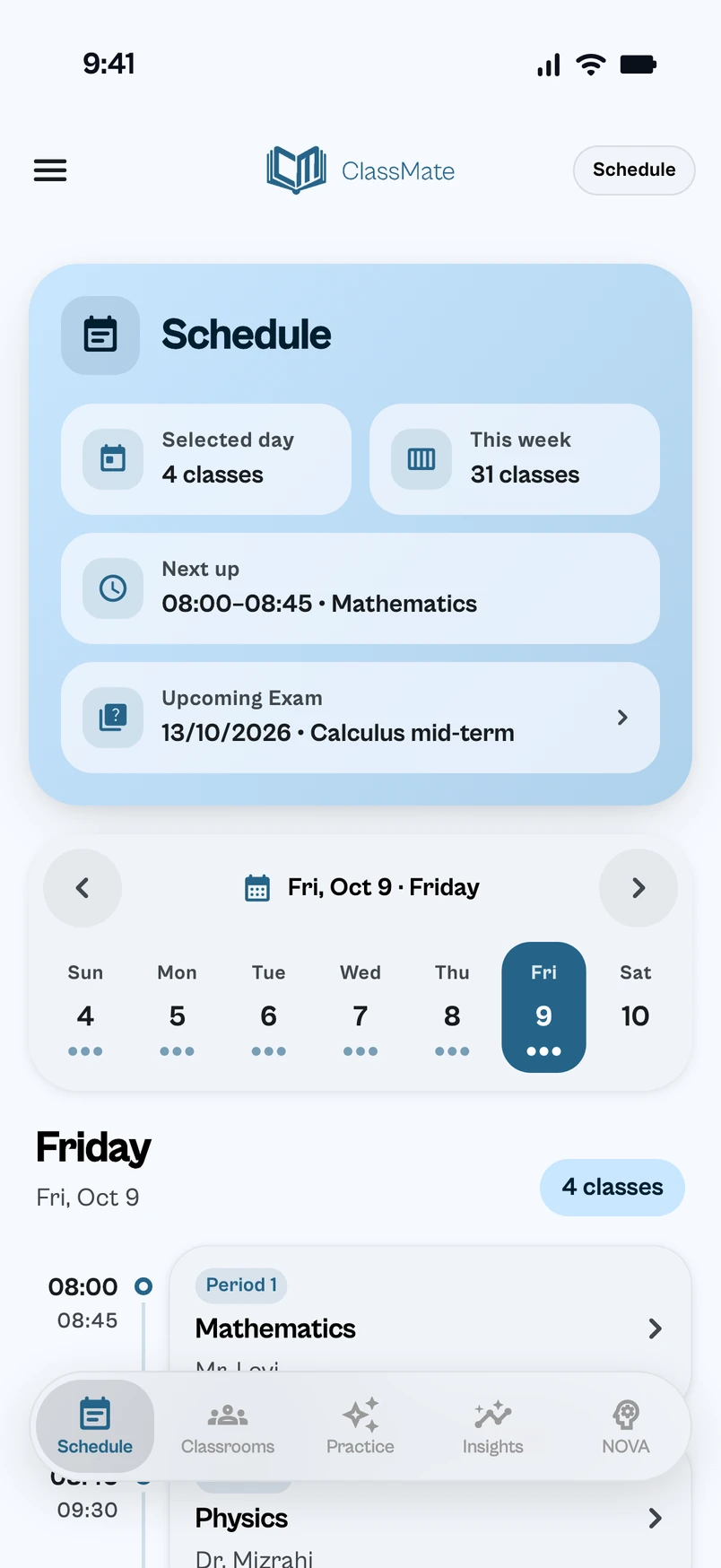
Every period, time and teacher at a glance. Tap any class to see students, materials and attendance.
Announcements, assignments, materials and real-time messaging — organized by class.
A global, searchable library of worked solutions by subject and book — shared across schools.
Track grades, attendance and progress with clean dashboards for students and parents.
Adaptive practice questions and exam preparation that adjust to each student.
Tailored to exactly what each person needs.
Scroll — watch the phone flip through the app.Swipe — flip through the app.
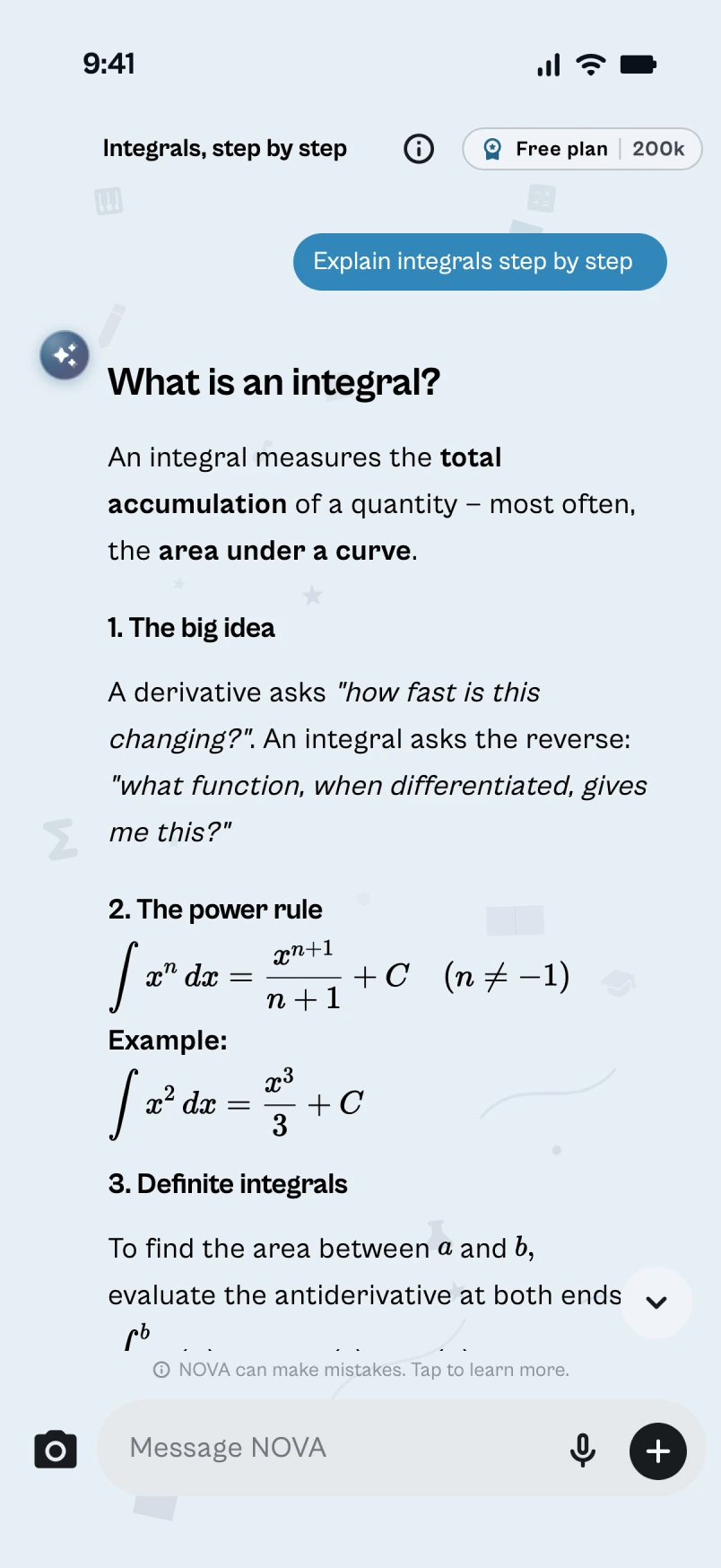
Step-by-step help with real math & code rendering, in your language.
Every period, time and teacher — tap a class for students & materials.
Announcements, assignments, materials and real-time chat per class.
Searchable solutions by subject & book — shared across schools.
Grades, attendance and progress in clean dashboards.
Questions that adjust to each student.
Step-by-step help with real math & code rendering, in your language.
Every period, time and teacher — tap a class for students & materials.
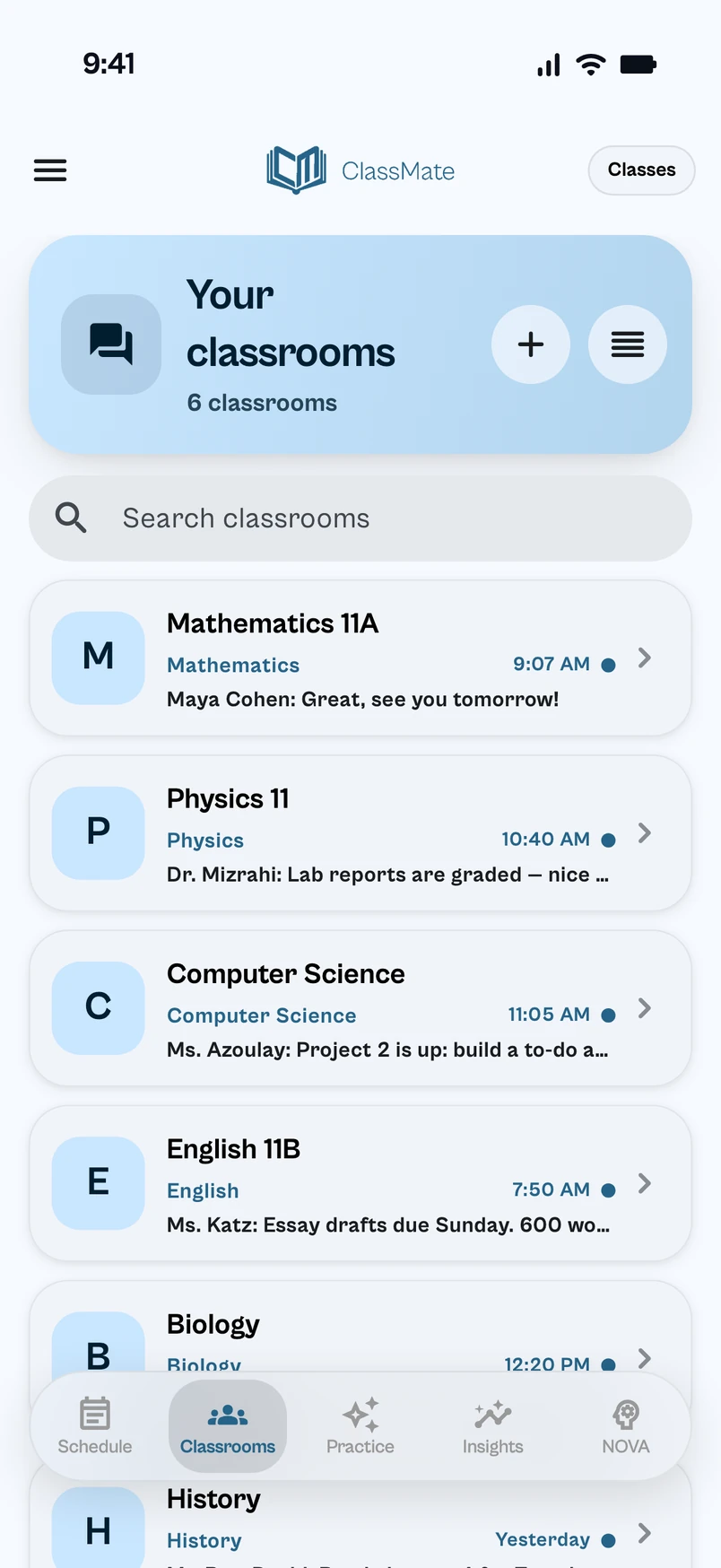
Announcements, assignments, materials and real-time chat per class.
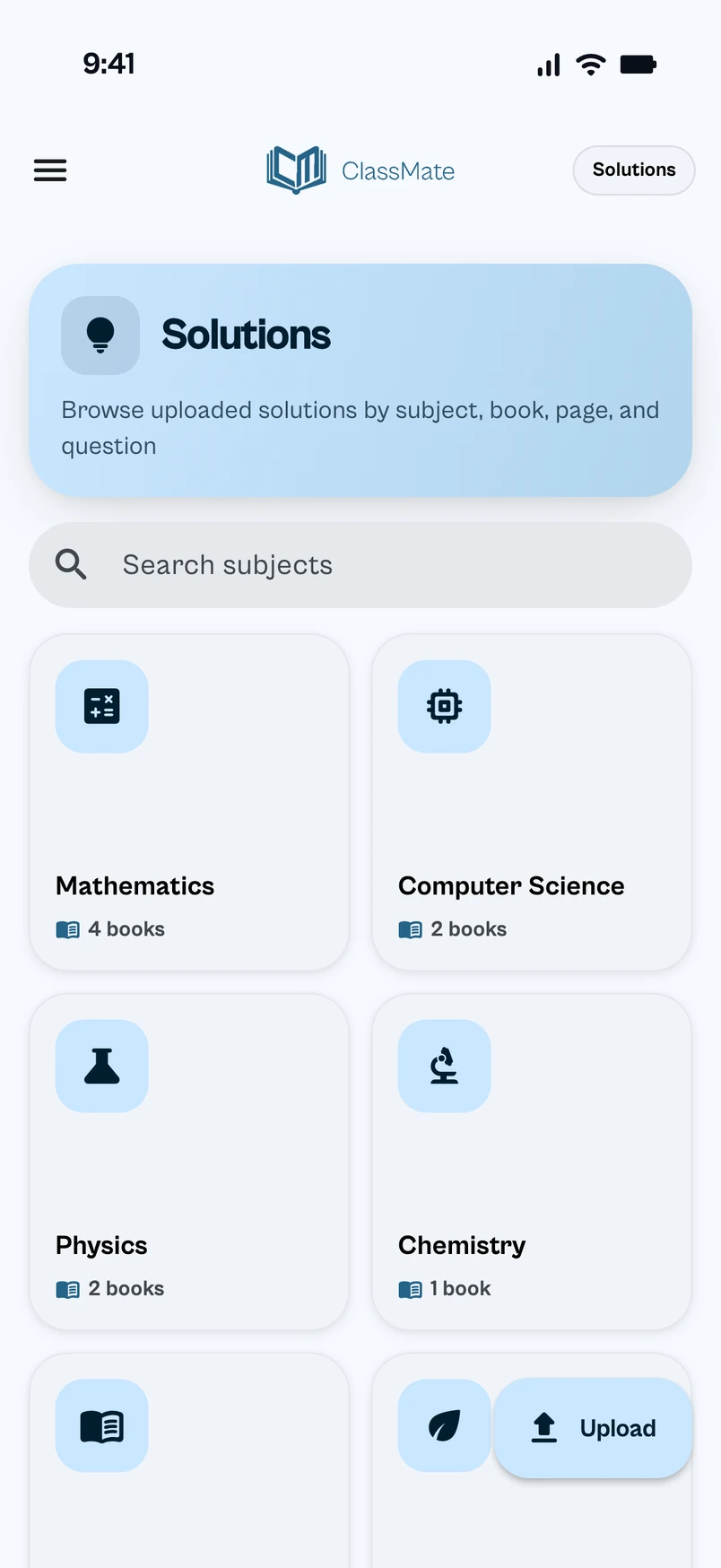
Searchable solutions by subject & book — shared across schools.
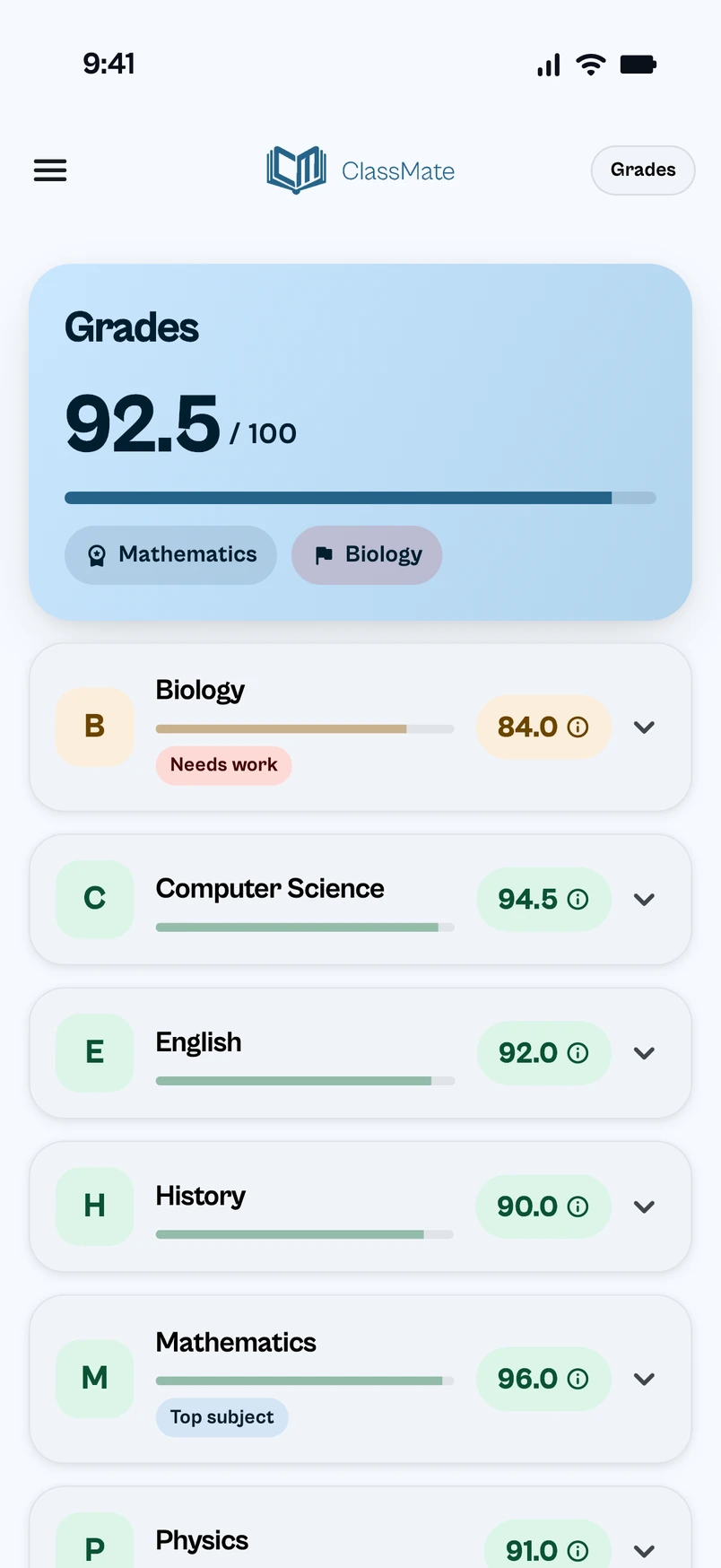
Grades, attendance and progress in clean dashboards.
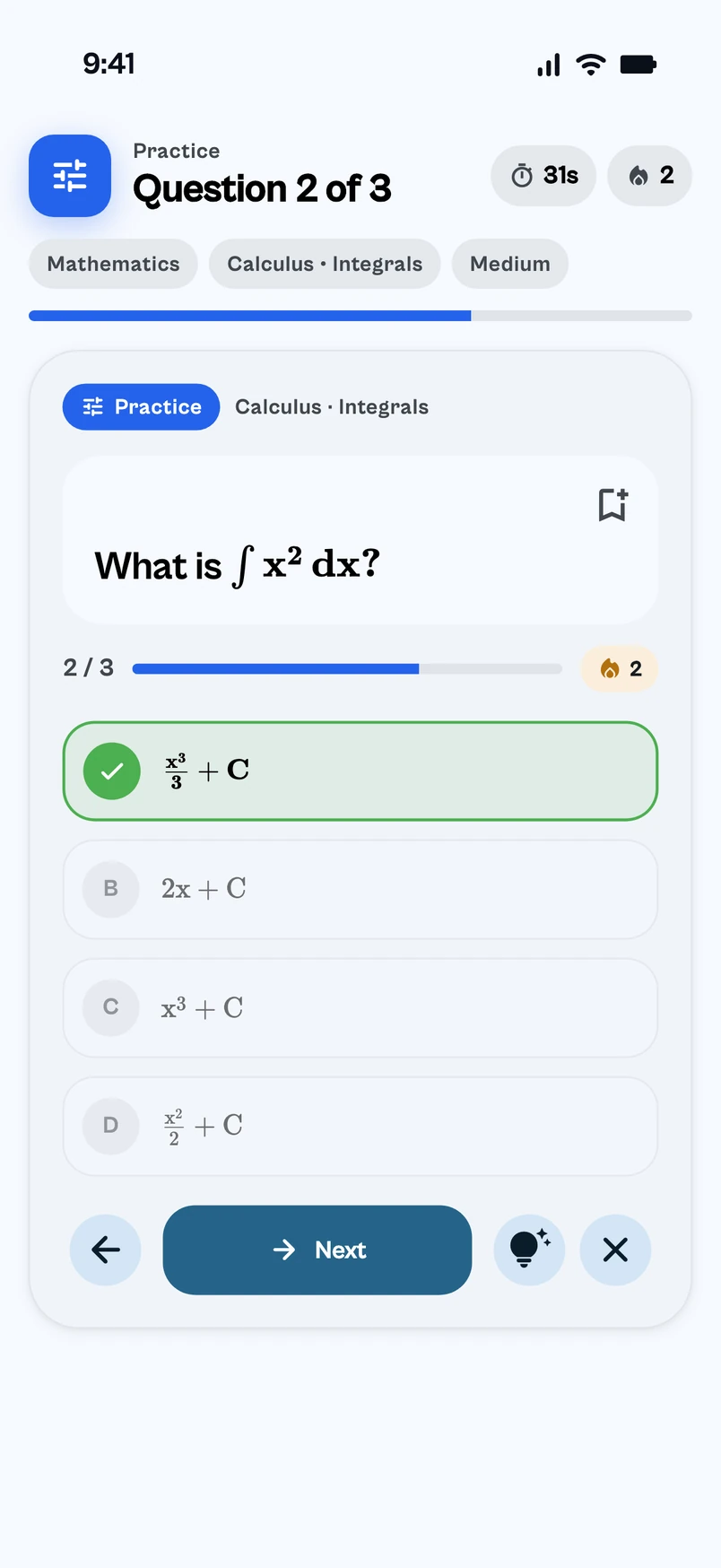
Questions that adjust to each student.
See the whole app come to life — NOVA, schedules, classrooms and more.
Use it instantly in your browser, or install it on your phone.
Works on PC, laptop, iPad and phone. Some features (payments, push) are app-only.
Answers to the most common questions — the same help you get inside the app.
Email us and we’ll get back fast.
Tap “Sign in” on the welcome screen and enter the email or username your school administrator gave you, plus your temporary password. You’ll be asked to set a new password the first time.
Your school administrator creates accounts. Ask them to add you — they’ll give you a username or email and a temporary password.
Yes — ClassMate supports English, Arabic, Hebrew, French and Russian. Open Settings → Language to switch.
Open Settings → Appearance → Theme. Pick “System default” to follow your device’s light or dark mode, or choose one of 20 themes — you can also make your own.
Tap “Forgot password?” on the sign-in screen. We’ll send a reset link by email or by text message (SMS), in your language. If neither your email nor your phone is verified yet, ask your school administrator to set a new temporary password.
Open Profile from the drawer, scroll to Security, and tap Change password. You’ll need your current password to set a new one.
Open Profile, tap the field you want to change, and follow the verification prompts. A code goes to your current email or phone first to confirm it’s really you, then you can set the new value.
When an administrator resets your password, you’ll get an email and SMS with a one-tap link to set your own password. The admin never sees what you choose.
Schedule is the first tab at the bottom of the screen. You’ll see this week’s periods, who teaches each one, and any changes the admin has posted.
A teacher will add you directly, or share a join code. To use a join code, open the Classrooms tab, tap Join classroom and type the code.
Teachers mark attendance during the lesson. Open Attendance or Grades from the drawer to see your records. Parents linked to your account see the same data.
NOVA is your AI study buddy — ask it to explain a concept, generate a quiz, or walk through a problem step by step. Open the NOVA tab to start a chat.
Open the Classrooms tab and tap the + button. Give it a name and subject; students can be added by hand or via a join code.
Open Attendance from School tools, pick the date and period, set each student’s status, then tap Save.
Open Assignments and tap +. Fill in the title, due date, and attachments, then pick an audience (the whole school, specific cohorts, or named students). Students see it right away in their Assignments.
Homeroom teachers can — open Certificates from School tools, pick the class and the student, then create the certificate. You can also build one PDF for the whole class. The student sees it in their own Certificates.
Open the Admin Dashboard. The School Setup widget at the top shows a 7-step checklist (logo, name, subjects, bell schedule, cohorts, students, teachers). Each step deep-links to where you complete it.
A cohort is a group of students that share a schedule. Open Cohorts from School tools to create them and add students. A single cohort can span multiple grades.
Yes — when creating a cohort, select multiple grades. The cohort then appears in any of those grades’ filters and views, and announcements and templates targeted at any of those grades reach it.
Open the Schedule tab. Tap any cell to add a period — pick the day and period, the teacher, the subject, and the audience (a cohort, a student, or a grade). Bell-schedule times come from School settings.
Open Export Data. Choose whether to select by student or by cohort, pick the rows, and tap Export. If you include passwords, each exported student gets a new temporary password (the old one stops working) — handy for printing sign-in cards.
Open Users, tap the person and set a new password — they also get an email or text with a link to choose their own. If their email or phone is verified, they can reset it themselves with “Forgot password?”.
Your child’s school administrator links your account to your child from their admin app. Once linked, your child appears on your Home screen.
Attendance, grades, announcements, and homework — exactly what your child sees plus the trends across time. You won’t see private chats or NOVA sessions.
Only people in your school. Teachers see their classrooms’ data, admins see school-wide data, parents see their linked children. We never sell data to advertisers.
Ask your school administrator to delete it from their admin app, which wipes your profile, schedule, and chats. You can also email support@classmateapp.org from your account’s email address and we’ll delete it within 30 days.